
Introduction
How to Search Within Skywise Support Portals
This article shows you how the search feature works within the Skywise product support portals.
We estimate that this will take 6 minutes to complete.
Portal Searching
All of the product support portals have search functionality within them and this works in the same way for every portal. In this article we will use the N-Flight Planning (NFP) product support portal for demonstration purposes.
HINT
Although searching is very simple, there are some methods you can use that we will explain in this article that help you to get to the results you are looking for quickly and easily.
All searches need to start from the product support page at www.skywise.com/support
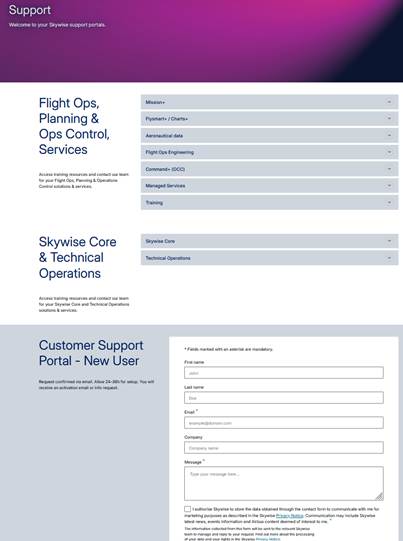
Let's imagine that we are looking for help on the N-FP product and that we need help on fuel tankering. Our keyword that we will use when searching is "fuel".
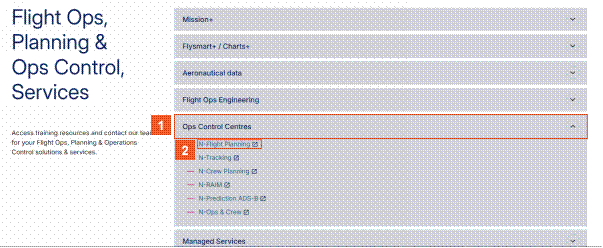
 Click the Ops Control Centres button.
We need to open the N-Flight Planning support portal.
 Click the N-Flight Planning hyperlink.
We have navigated to the N-FP support portal. Note, we are not logged in as an authorized user yet. This means that the content we can see and the content we are search on will be restricted to only that content which is classified as being for public use.
You can tell that you are not logged in, because the Login button is available.
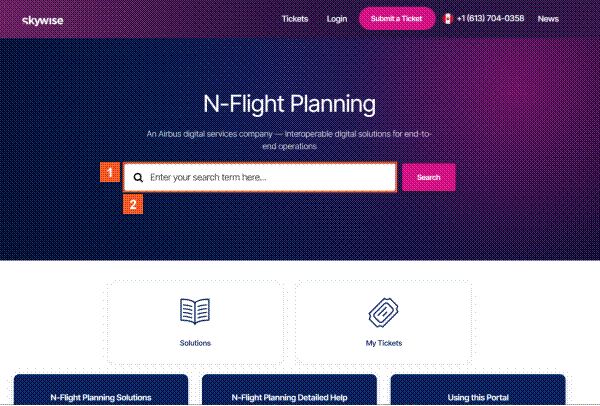
 Click the Search input field.
 Enter fuel into the Search field.
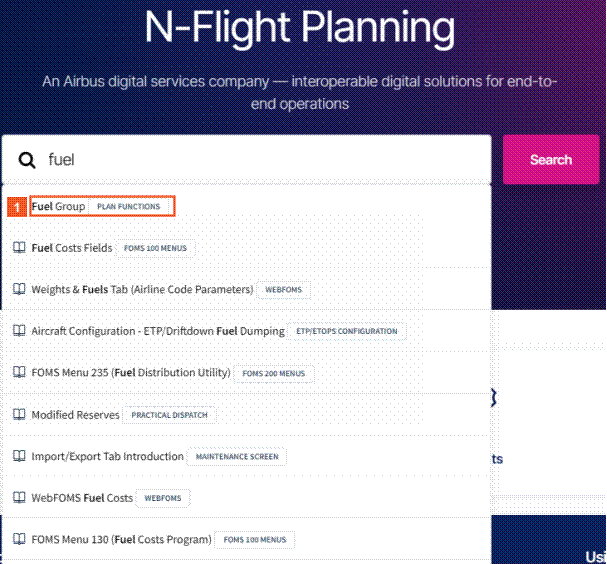
The search results are restricted to publicly available content. Clicking on any of the search results will take you to the relevant content.
HINT
Do you notice that there is an icon resembling an open book next to each of the search results? This indicates that the result is classified as a solution from the knowledge base.
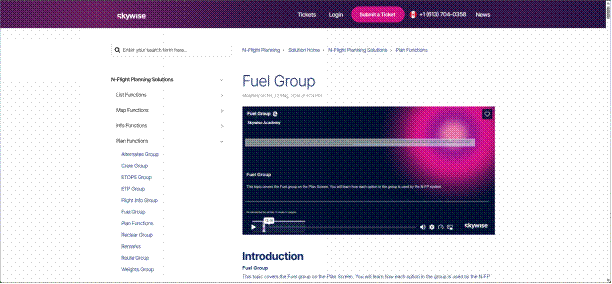
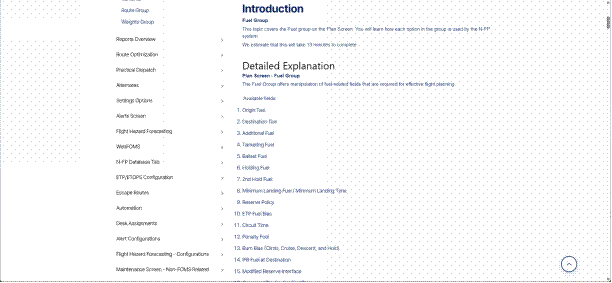
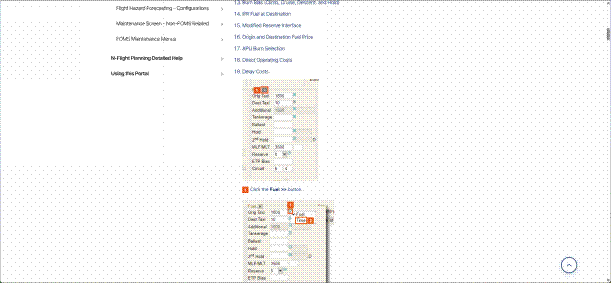
 Click the Fuel Group list item.
 Press the
  key.
key.
 Press the
  key.
key.
 Press the
  key.
key.
 Click the To the top button.
We can see that this article is not helping us with our fuel tankering question, so we decide to return to the top of the page.
Folders containing solutions can be browsed here.
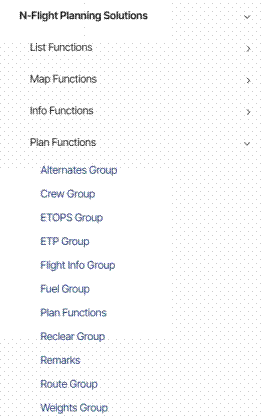
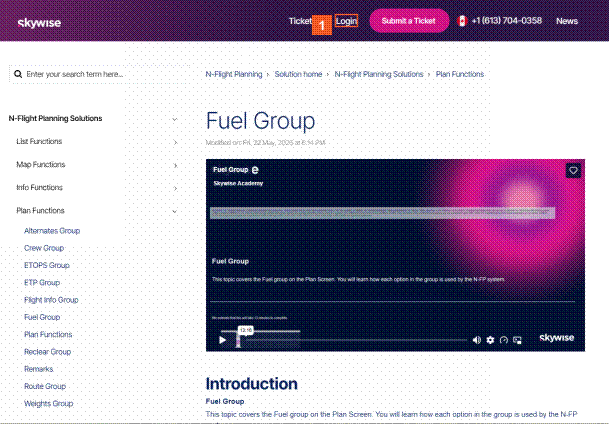
Logging in grants you more information than the public view.
 Click the Login button.
You would normally fill in your username and password next, but for the purposes of this demonstration we have filled them in already.
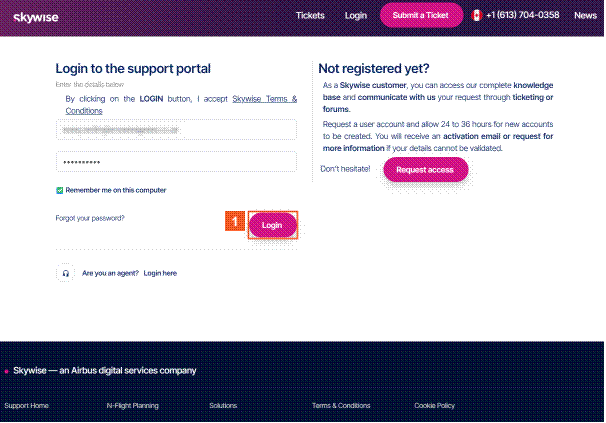
 Click the Login button.
HINT
If you do not have a username and password, but would like one, or you have colleagues that need one, then please complete the form at the bottom of the page at www.skywise.com/support.
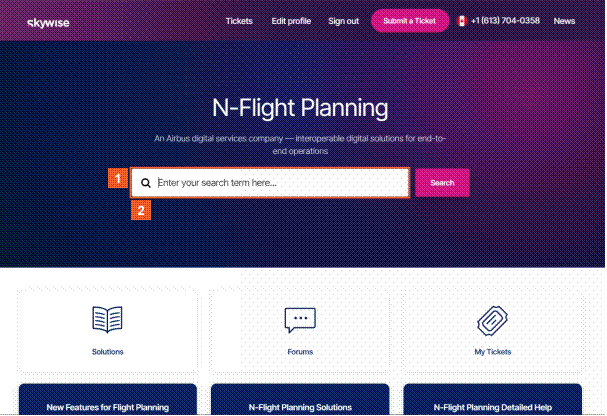
 Click the Search input field.
 Enter fuel into the Search field.
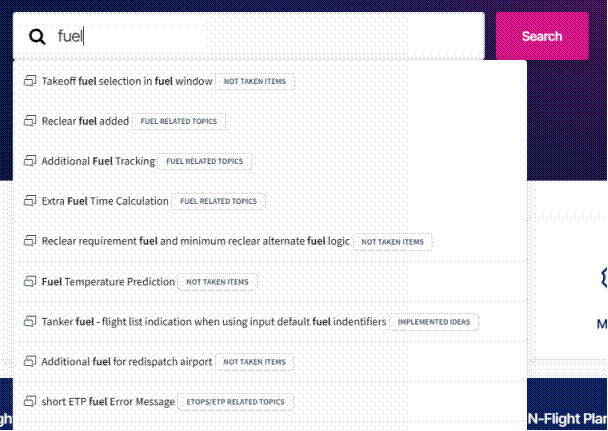
HINT
You don't have to press enter whilst searching. Results are listed before then, and you can click on a search result to see the article. Also, note that search results include searching tickets which have been previously submitted.
 Press the
  key.
key.
The search results are shown, but we will need to scroll down again to view them all.
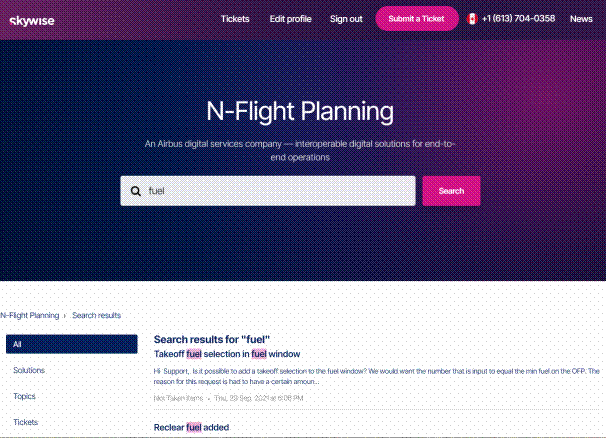
 Press the
  key.
key.
All results in all categories are now listed. You know that it is all the results because the All tab is highlighted. Results in the All category often go over more than one page.
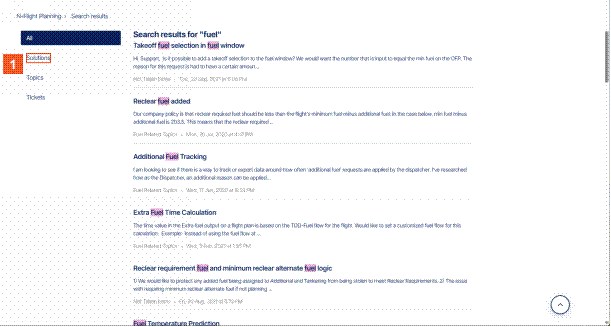
HINT
Do you notice that the word we searched on is highlighted in the results? Searches are not case sensitive.
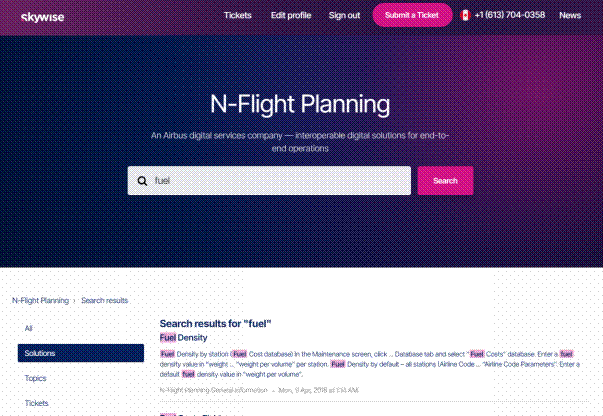
Because there are so many search results, it can be useful to filter them by category. Let's turn on the filter by "Solutions". This means the results are filtered to only show knowledge base articles.
 Click the Solutions tab.
 Press the
  key.
key.
Only solutions (articles) from the knowledge base are now shown.
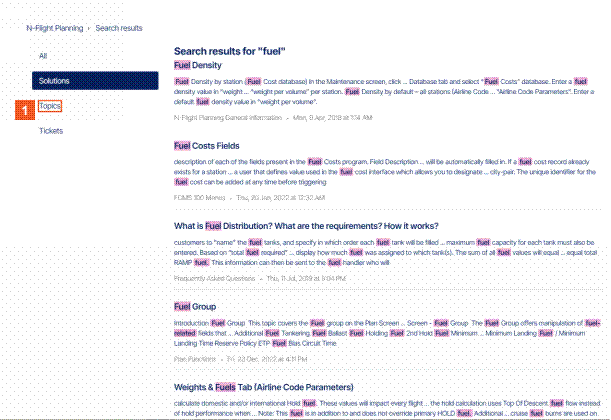
Filtering by "Topics" shows only the forum topics that match our search.
 Click the Topics tab.
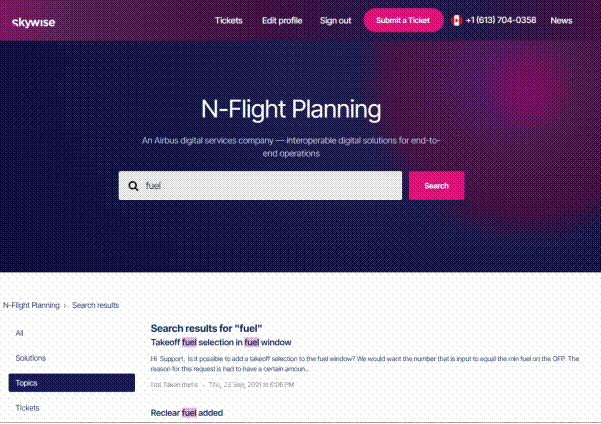
 Press the
  key.
key.
Clicking on any of the hyperlinks will take you into the discussion within the forum.
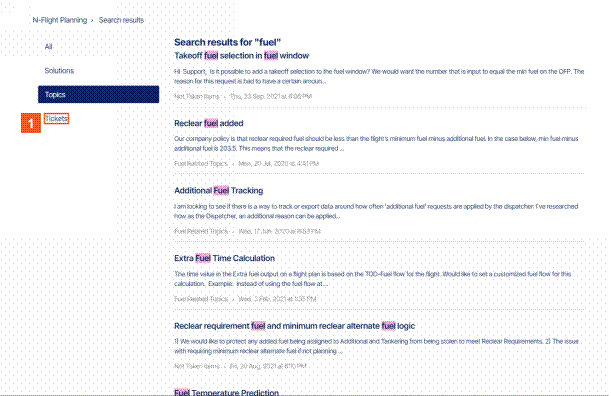
Let's now filter by "Tickets" only.
 Click the Tickets tab.
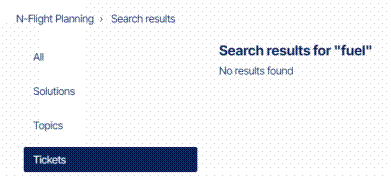
You can only view tickets for which you have the proper access rights to. In this case, there are no tickets available to you.
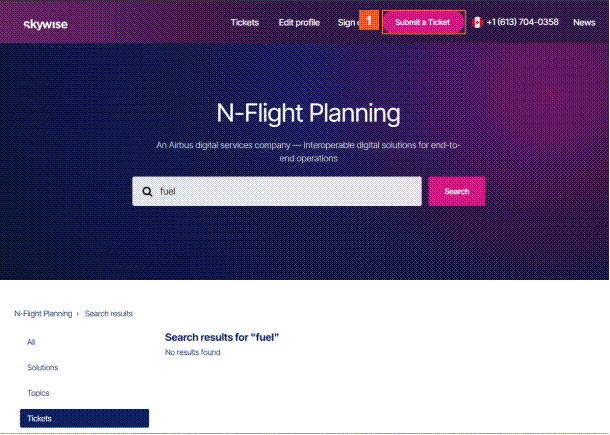
As we haven't found what we are looking for, let's submit a support ticket to Skywise.
 Click the Submit a Ticket button.
Add a New Support Ticket
At this point, we will raise a new support ticket with the N-Flight Planning (NFP) support team.
ATTENTION
When new tickets are added, the text within the ticket does not immediately become searchable. This can take two to three minutes on average.
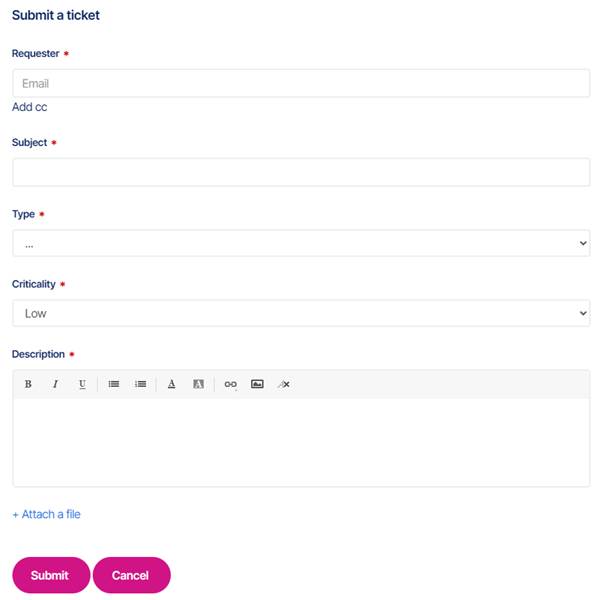
Your email address will be pre-filled for you.
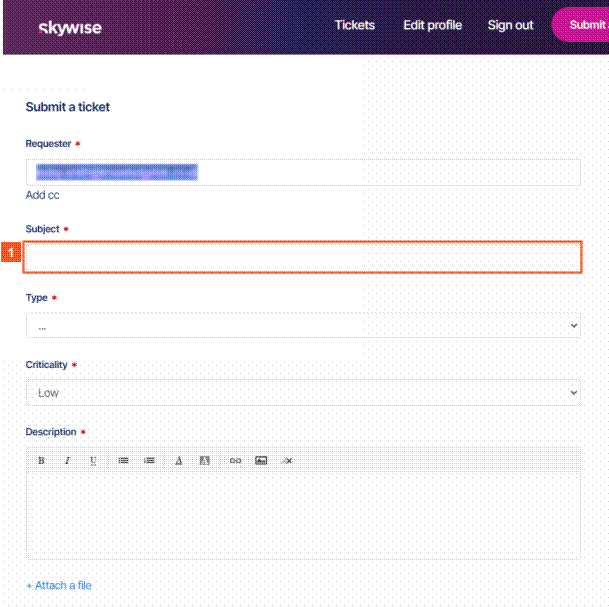
 Click the Subject input field.
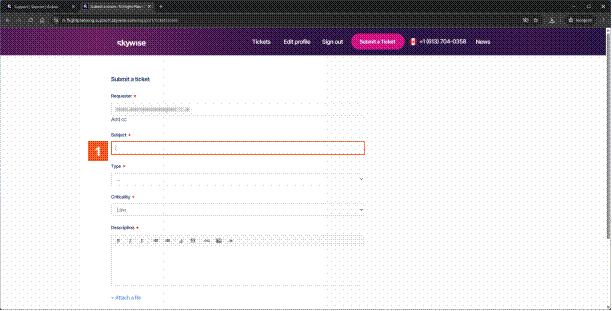
 Enter Fuel Tankering into the Subject field.
Please try to make the subject as meaningful as possible to help our agents.
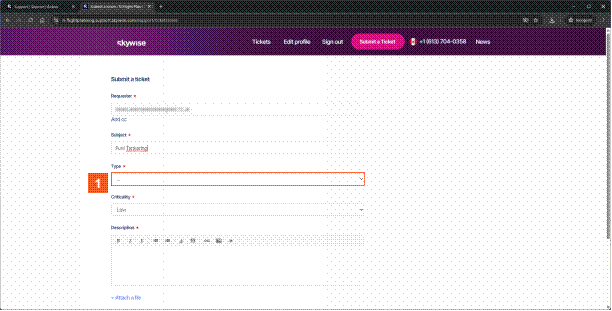
 Click the Type combo box.
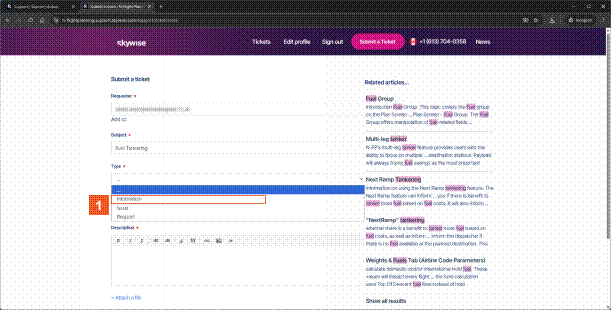
 Click the Information list item.
Up until now we have only been using "fuel" as our keyword. Now that we have used "tankering" in the subject, we can see that there are many more articles that could be helpful. You can navigate into any of these by clicking the hyperlink, before submitting a ticket.
You decide to continue with the support ticket and request some information.
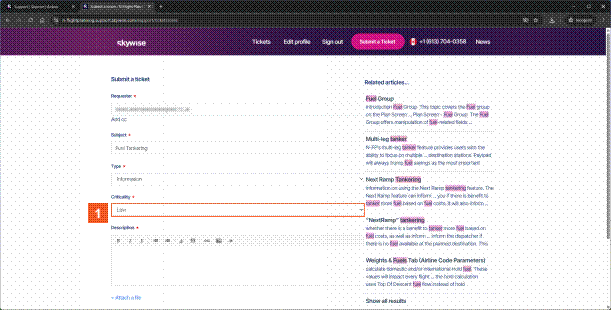
 Click the Criticality combo box.
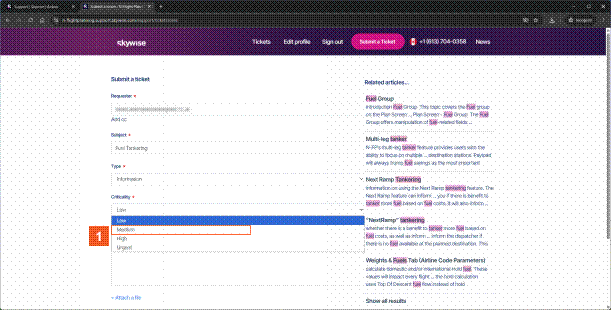
 Click .
You need to determine how critical it is to you. This is used by our agents when prioritizing responses.
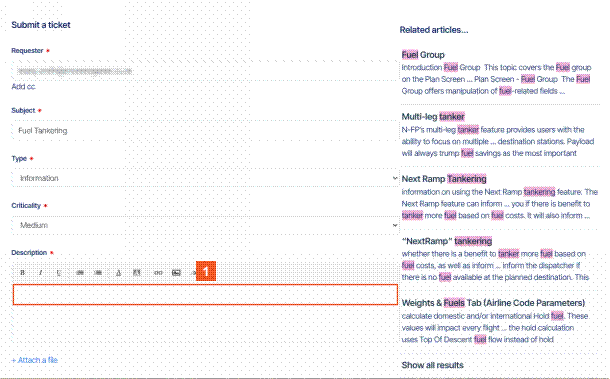
 Click the Description input field.
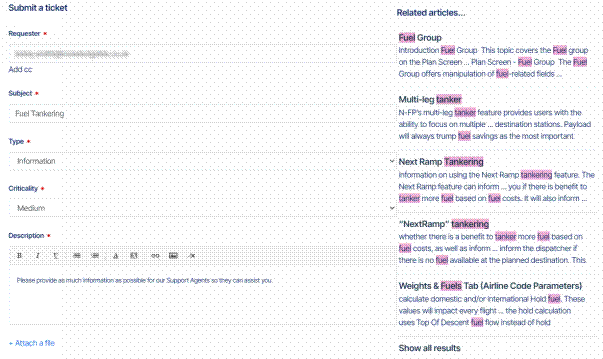
We inserted a description for you.
Inserting pictures or links can be very helpful for Skywise.

 Press the
  key.
key.
Attaching log files or diagnostic information can also be very helpful.

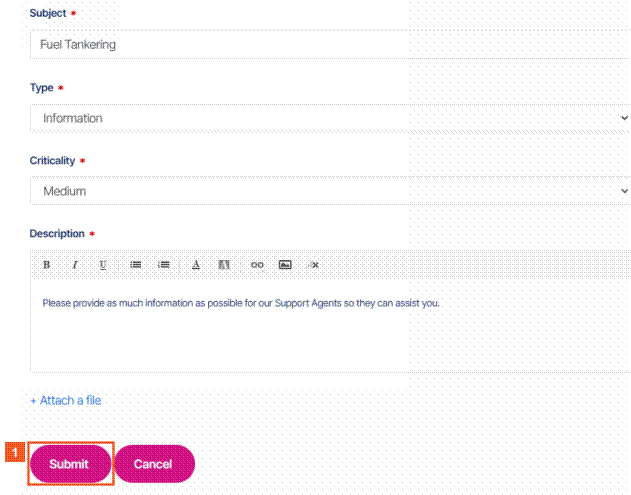
 Click the Submit button.
A confirmation message shows the ticket has been created.
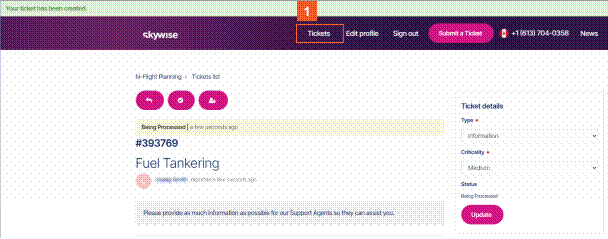
The ticket number is your unique reference.
If you have multiple tickets, you can view them all from the Tickets tab.
 Click the Tickets button.
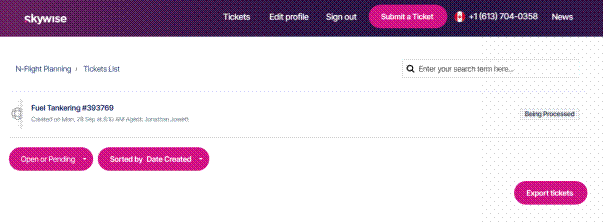
All the tickets you have access to will be shown.
If there are many tickets, then filters are available to you to reduce the list.